


Git & GitHub Sync Workflow: Seamless Development Across PC and Mac
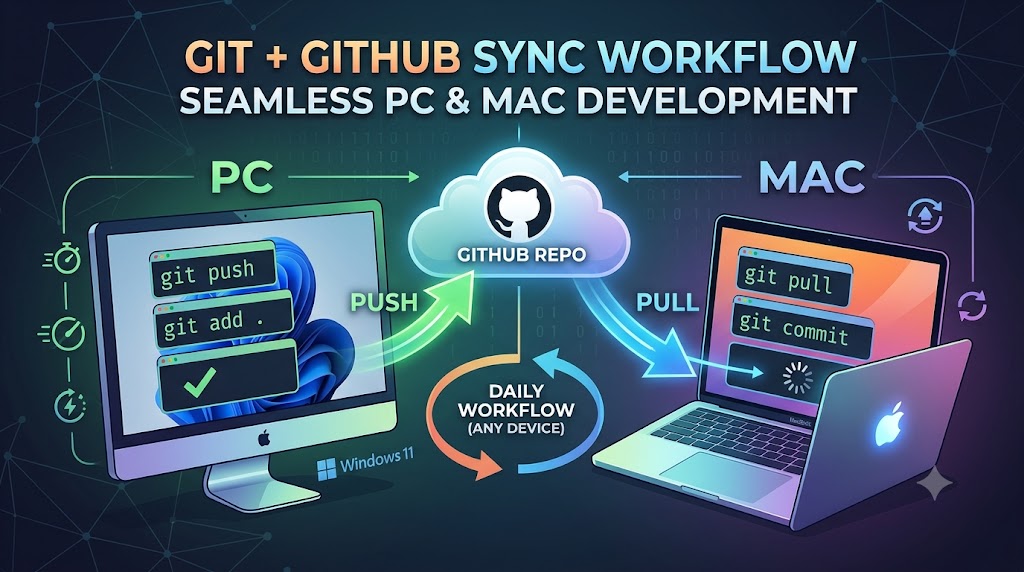
Developing projects across multiple machines—like a primary Windows desktop and a portable MacBook—requires a clean, reliable synchronization strategy. Relying on cloud storage containers often corrupts local environment states or database locks. Instead, using Git and GitHub provides a structured version control pipeline that keeps your codebase identical on any operating system.
This step-by-step guide walks through initializing repositories, syncing secondary nodes, and running a friction-free daily cross-platform development loop.
The Initial Codebase Setup (First Device)
Execute these steps on the machine where your project files currently live to establish your local history and push it to the cloud.
- Initialize the local repository: Terminal / Command Prompt. Navigate into your root project directory and initialize the hidden Git tracking environment:
cd your-project-folder
git init
- Stage and commit files: Baseline snapshot. Stage all existing project files into the index and commit them to freeze your initial state:
git add .
git commit -m "Initial commit"
Create an empty GitHub repository: GitHub Browser UI. Go to github.com/new. Give your repository a name, choose public or private visibility, and leave the options to add a README,
.gitignore, or license unchecked to avoid merge conflicts. Copy the remote repository HTTPS or SSH URL.Link and push to GitHub: Establishing upstream branch. Map your local tracking folder to the remote GitHub container, explicitly rename your baseline branch to
main, and push the code upstream:
git remote add origin https://github.com/groznet/repo.git
git branch -M main
git push -u origin main
(Note: If you accidentally initialized the remote repository with background files on GitHub, you may need to force-align the stream using git push -f origin main to clear tracking disparities).
Deploying to Your Secondary Device
Once your code lives on GitHub, setting up your second workstation (whether moving from PC to Mac or vice versa) takes only a single download command.
- Clone the remote repository: Secondary device setup. Open your terminal application, navigate to your target development folder, and pull down a fresh, fully-tracked copy of the codebase:
git clone https://github.com/groznet/repo.git
- Access project folder: Ready to code. Change directories into the newly created folder to instantly access your exact file structures and tracking logs:
cd repo
The Daily Cross-Platform Development Loop
To prevent code conflicts and messy divergence lines when bouncing between your desktop and laptop, build your daily routine around these two core terminal habits.
1. Before You Start Typing Code
Always pull down changes made from your other machine before altering local lines. This fetches the latest commits from the cloud and fast-forwards your current system.
git pull
2. When You Finish a Work Session
Stage your updates, wrap them in a descriptive message, and push them back to GitHub so they are instantly ready for your other workstation.
git add .
git commit -m "Describe your changes"
git push
Essential Best Practices
⚠️ Critical Integration Reminders
- Never skip the pull step: Modifying code simultaneously on separate machines without pulling first creates nasty merge conflicts that require manual line-by-line resolution.
- Deploy a comprehensive
.gitignorefile: Operating systems generate hidden system files (like macOS.DS_Storeor WindowsThumbs.db) along with local workspace cache folders (like.vscodeornode_modules). Keep these files out of your Git history entirely by adding them to a root.gitignorefile before running your initial push commands.- Leverage SSH Keys: Save yourself from repeatedly entering authentication details during pushes by adding your PC and Mac SSH public keys to your profile via your GitHub Account Settings > SSH and GPG keys.
Summary & Conclusion
Synchronization Command Blueprint
| Command | Action Context | Operational Goal |
|---|---|---|
git init | One-time task | Converts a plain folder into a Git repository |
git clone <url> | One-time task | Replicates a cloud repository onto a new machine |
git pull | Every session start | Pulls changes down from the cloud to update your active machine |
git push | Every session end | Ships local code updates back up to GitHub |
Conclusion
Using Git as your workspace sync engine removes the unpredictability of managing cross-platform environments. By sticking to a strict “pull before coding, push when done” protocol, you ensure your project stays perfectly uniform across both PC and Mac, letting you focus entirely on building your layout templates, scripts, and web applications without losing sleep over file discrepancies.