


Switching from Windows to Mac: Why Remapping the Fn Key to Command Saves Your Muscle Memory
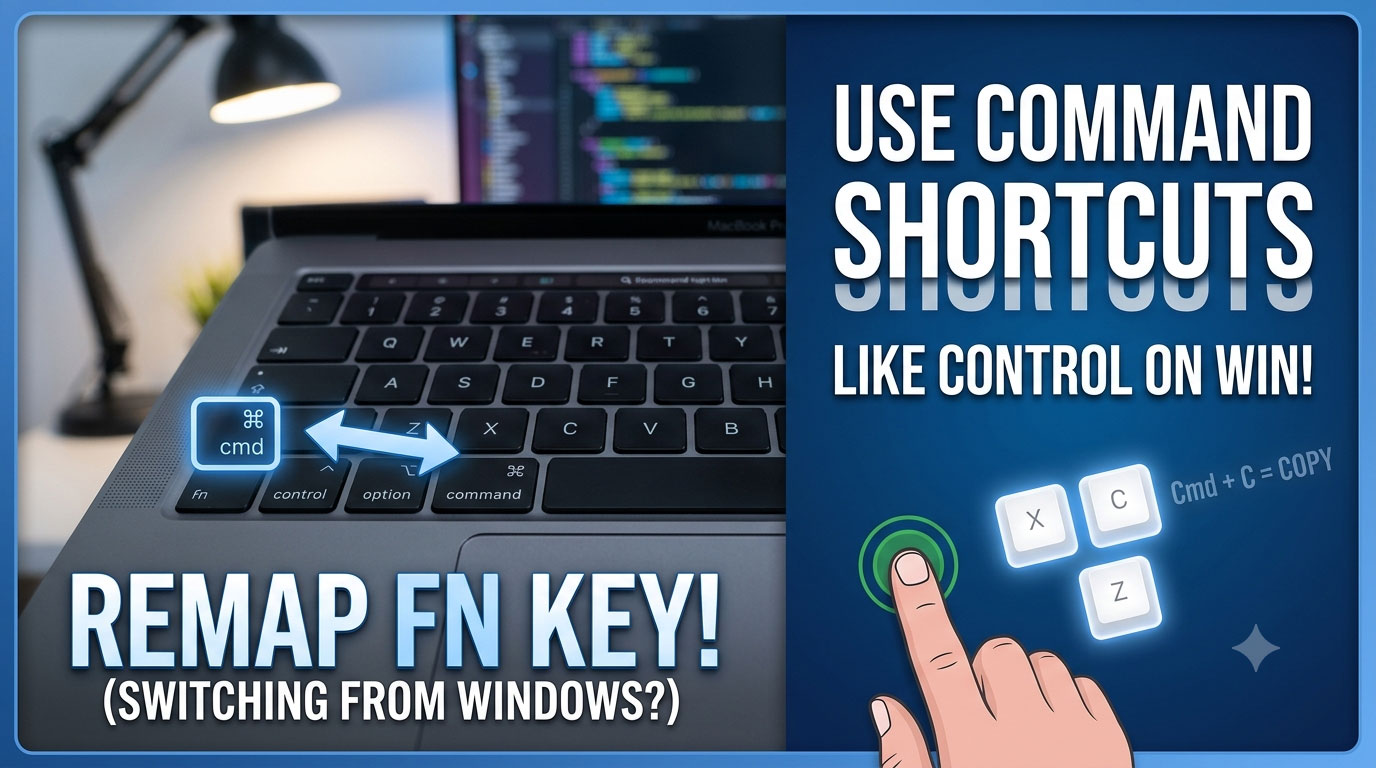
When switching from Windows to macOS, the single biggest challenge for most people is adapting to the keyboard shortcuts.
On a Windows keyboard, the primary modifier key is Control (Ctrl), located at the absolute far left of the bottom row. On a Mac, the primary modifier key is Command (Cmd), but it is placed right next to the spacebar. To make matters worse, the far-left key on a MacBook layout is actually the Fn (Function) key.
If your muscle memory keeps reaching for that bottom-left corner to copy, paste, or undo, you can easily reassign the Command action to the Fn key in your Mac’s system settings. This gives you two Command keys and lets your left pinky behave exactly as it did on Windows.
Before making the switch, it helps to review exactly what the Fn key actually does by default to ensure you aren’t sacrificing any critical features.
What Does the Fn Key Actually Do by Default?
On compact Mac layouts and MacBooks, the Fn key serves as a bridge to unlock hidden secondary layouts for navigation, text modification, and system utilities. Here is the full list of default shortcuts tied to the Fn key:
1. Document & Page Navigation
These combinations emulate dedicated keys typically found only on full-sized desktop keyboards.
- Fn + Up Arrow ($\uparrow$): Page Up (Scrolls up one full page).
- Fn + Down Arrow ($\downarrow$): Page Down (Scrolls down one full page).
- Fn + Left Arrow ($\leftarrow$): Home (Scrolls to the very beginning of a document).
- Fn + Right Arrow ($\rightarrow$): End (Scrolls to the very end of a document).
2. Text Editing & Input
- Fn + Delete: Forward Delete (Deletes the character to the right of the cursor, matching the Windows ‘Delete’ key behavior).
- Fn + Return: Enter (Executes a true ‘Enter’ command instead of a carriage return).
- Fn (Double Press): Start Dictation (Triggers standard system voice dictation).
- Fn + E: Emoji Picker (Brings up the character viewer panel).
3. System & Accessibility
- Fn + Command + F5: VoiceOver (Quickly toggles the built-in screen reader).
- Fn + F: Full Screen (Toggles full-screen mode for the active application window).
- Fn + Q: Quick Note (Instantly opens a floating Apple Note pad).
Summary & Conclusion
Is Reassignment Worth It?
While the default Fn shortcuts offer handy navigation and editing tools, none of them are structurally critical to running macOS. Most users find that regaining their fluid, subconscious Windows shortcut muscle memory (like hitting the bottom-left key for $Ctrl+C$ type actions) is vastly more valuable than native Fn actions.
By remapping Fn to Command, you bridge the layout gap between both operating systems instantly, keeping your typing speed intact without a painful learning curve.