


OpenClaw: Building a Personal AI Assistant with Local Ollama Models
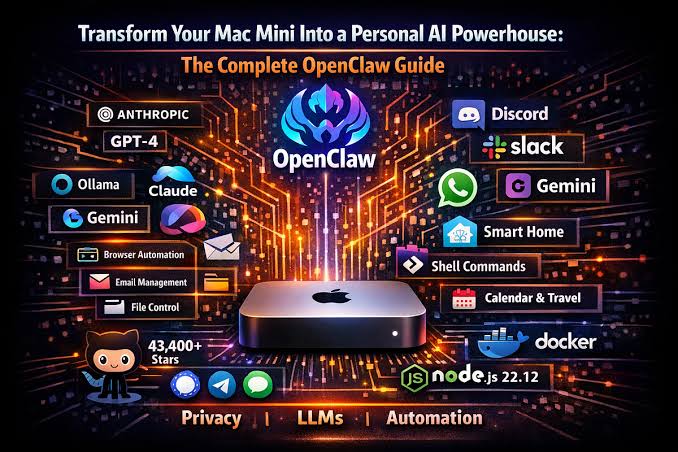
OpenClaw: Building a Personal AI Assistant with Local Ollama Models
OpenClaw is designed to go beyond a conventional chatbot: it can act as an autonomous AI assistant that connects models, tools, external services, memory, skills, and automation into a single personal workflow.
This episode is a practical introduction to understanding and building that system.
The focus is not simply on learning OpenClaw’s configuration options, but on developing a clear mental model of how the different pieces fit together and how to design an OpenClaw setup around real-world productivity.
The target architecture explored in this episode is:
                    ┌─────────────────────┐
                    │       User          │
                    └──────────┬──────────┘
                               │
                               ▼
                    ┌─────────────────────┐
                    │      OpenClaw       │
                    │      Hostinger      │
                    └──────────┬──────────┘
                               │
                    ┌──────────┴──────────┐
                    │                     │
                    ▼                     ▼
          ┌──────────────────┐   ┌──────────────────┐
          │ Mac Mini M4      │   │ Cloud Fallback   │
          │ Ollama           │   │ OpenRouter /     │
          │ DeepSeek R1      │   │ Ollama Cloud     │
          └──────────────────┘   └──────────────────┘
                    │
                    ▼
             Local AI Models
The main objective is to make local AI inference the preferred option whenever the Mac Mini M4 is available, while maintaining a reliable cloud fallback when it is not.
The broader productivity environment includes:
- Google Docs
- Google Sheets
- Google Drive
- Obsidian Markdown files
- GitHub repositories
- OpenClaw skills and tools
- Persistent memory and assistant configuration
- Automated and scheduled workflows
A major theme throughout the discussion is that a useful autonomous assistant is not just a model. It is a system consisting of models, context, memory, tools, permissions, integrations, and automation.
What This Episode Covers
The conversation progressively explores:
- OpenClaw’s architecture and mental model
- Gateways, agents, sessions, channels, tools, skills, and workspaces
- Model providers and model routing
- Connecting a Hostinger-based OpenClaw installation to Ollama on a Mac Mini M4
- Running DeepSeek R1 and other local models
- Local-model-first routing and cloud fallback
- Ollama, OpenRouter, and cloud-model trade-offs
- API keys, secrets, permissions, and security
- Persistent context through files such as
SOUL.md,IDENTITY.md,USER.md,MEMORY.md, andSKILLS.md - Google Workspace automation
- Obsidian and Markdown-based knowledge workflows
- GitHub automation
- Skills, tools, scheduled tasks, and autonomous workflows
- Debugging, reliability, and observability
- Designing OpenClaw as a practical personal productivity assistant
The Core Mental Model
The most useful way to think about the system is:
User
  ↓
Channel
  ↓
OpenClaw Gateway
  ↓
Agent
  ↓
Model Provider
  ↓
Reasoning + Context
  ↓
Tools / Skills
  ↓
External Services
  ↓
Memory / Workspace
The model provides intelligence, but OpenClaw provides the surrounding agent infrastructure that allows that intelligence to interact with the user’s environment.
This distinction becomes particularly important when designing a local-first architecture.
Instead of treating Ollama as the entire AI assistant, Ollama becomes one component in the larger system:
OpenClaw
    │
    ├── Local inference → Ollama → Mac Mini M4
    │
    └── Fallback inference → Cloud provider
The result is intended to combine the privacy, control, and potentially lower marginal cost of local inference with the availability and model diversity of cloud providers.
Podcast Transcript
The complete transcript of the 35:13 OpenClaw Audio Overview follows below.
It has been preserved from the generated audio and formatted as Markdown for easier reading, searching, linking, and long-term reference in Obsidian.
Transcript: The Persistent OpenClaw Assistant That Dreams
Podcast Title: The Persistent OpenClaw Assistant That Dreams
Format: Deep Dive Technical Episode
Duration: 35:13
Hosts:
- Sarah: Lead AI Systems Architect
- Jason: Principal DevOps and Local-First Infrastructure Engineer
Part 1: Welcome & The Big Picture Philosophy of OpenClaw
[00:00 - 04:15]
Sarah: Welcome, everyone! Today, we are going to do a massive, highly technical deep dive into a project that has completely taken the AI community by storm. I am talking about OpenClaw. If you have been following the open-source space, you know it is blowing up—surpassing 145,000 stars on GitHub. But we aren’t just here to talk about the hype. We are going to build a production-grade, highly resilient local-first architecture today.
Jason: That’s right, Sarah. We are moving past the standard “getting started” scripts and looking at a true power-user architecture: running the OpenClaw Gateway on a cloud VPS like Hostinger, routing requests to a beefy local Mac Mini M4 running Ollama and DeepSeek R1, setting up secure Tailscale overlays, configuring automatic failovers to cloud models via OpenRouter, and organizing our entire digital life with Google Workspace, GitHub, and Obsidian.
Sarah: This is going to be incredibly practical. But first, Jason, let’s ground ourselves in the core philosophy. Why are people so obsessed with OpenClaw? How does it differ from a standard chatbot like ChatGPT or Claude, or even developer-focused terminal tools like Claude Code?
Jason: It’s an architectural shift, Sarah. Standard chatbots are purely reactive, session-based request-response systems. You send a query, the model runs inference on the last N turns of the chat, and when you close that browser tab, the context is completely gone. It’s stateless. Claude Code, which is an amazing tool, is similarly session-based. It’s built for deep, focused software development. You open a terminal, run Claude Code, it reads your codebase using CLAUDE.md, does the refactoring or debugging, and then you shut it down.
Sarah: Right, whereas OpenClaw… it never stops.
Jason: Exactly! OpenClaw is a persistent daemon. It is a background service running 24/7. It maintains a continuous identity, memory, and personality across every single channel you connect to it—whether that’s iMessage, Slack, WhatsApp, Telegram, Discord, or Signal. It has a continuous workspace on disk. It runs automated background sweeps at night—which we call “dreaming”—to consolidate what it learned. And it proactively schedules tasks and follows up on commitments using its heartbeat system. You don’t “open” OpenClaw; you live with it.
Sarah: It’s the difference between a brain surgeon you call in for a precise, focused operation—which is Claude Code—and a 24/7 personal assistant who has their own desk, manages your schedule, and remembers your preferences—which is OpenClaw. They aren’t competitors; they are highly complementary.
Jason: Totally. They can even talk to each other! You can have OpenClaw detect a deployment failure via a webhook, delegate the debugging task to Claude Code in your repository, and report the fix back to you on iMessage. That is the power of this architecture.
Part 2: Mapping Our Target Architecture
[04:15 - 08:30]
Sarah: Let’s map out the architecture we are building today. The user wants a specific, highly optimized setup:
- The Gateway Control Plane: Running 24/7 on a Hostinger VPS to handle persistent messaging channel connections, session queues, and cron scheduling.
- The Local Execution Node: A local Mac Mini M4 sitting on their home network, running Ollama to serve local models, specifically DeepSeek R1.
- The Secure Bridge: Connecting the public Hostinger VPS and the local private Mac Mini M4 securely without exposing ports to the public internet.
- The Priority Router: Using local models on the Mac Mini as the primary brain, but automatically failing over to cloud providers like Claude or GPT via OpenRouter if the local endpoint is busy, offline, or if the task requires massive reasoning scale.
Why is this Hostinger-to-Mac Mini architecture so ideal, Jason?
Jason: It solves a classic local-AI dilemma: availability versus compute. If you run your OpenClaw Gateway entirely on your local Mac, you have to keep that Mac awake, connected to a stable home IP, and expose it to receive webhooks or channel messages. That’s a massive security headache, and residential IPs rotate. By hosting the OpenClaw Gateway daemon on a cheap, stable, 24/7 Hostinger VPS, you get a dedicated public IP, perfect uptime, and reliable channel integrations.
Sarah: But a cheap VPS doesn’t have the GPU power to run a heavy local model like DeepSeek R1!
Jason: Precisely! That’s where the Mac Mini M4 comes in. The Apple Silicon M4 has incredible unified memory bandwidth, making it an absolute beast for local LLM inference. So, we let the Hostinger VPS handle the “routing and messaging” (the CPU-light, uptime-critical stuff), and we let the Mac Mini M4 do the heavy lifting of running the local model under Ollama.
Sarah: That makes perfect sense. But how do we connect a VPS on Hostinger to a Mac Mini inside a private home network behind a NAT, without opening firewalls and exposing our local system to the world?
Part 3: Securing the Connection & Exposing Ollama
[08:30 - 13:45]
Jason: This is where we see the most dangerous mistakes in the community. People install Ollama on their home machine, change the host environment variable to OLLAMA_HOST=0.0.0.0 to bind to all interfaces, and then forward port 11434 on their home router to the public internet so their VPS can talk to it.
Sarah: Oh, goodness. Please tell me they aren’t doing that. Ollama has no built-in authentication mechanism by default! If you forward port 11434, literally anyone on the internet who finds your public IP can run massive models on your Mac, execute denial-of-service attacks, drain your electricity, or potentially find exploits.
Jason: Exactly! It is an open invitation for disaster. So, how do we fix this? The gold standard for this architecture is Tailscale. Tailscale is a zero-config mesh VPN built on WireGuard.
Sarah: Walk us through the exact setup steps.
Jason: First, install Tailscale on both your Hostinger VPS and your local Mac Mini M4. Register them to the same Tailscale network—or “tailnet.” Once connected, both machines get a stable, private virtual IP address in the 100.x.y.z range.
Next, on your Mac Mini, configure Ollama to bind to its Tailscale IP instead of 0.0.0.0. You do this by setting the environment variable in your shell profile or your system service configuration:
export OLLAMA_HOST="100.115.12.34:11434"
(Replace 100.115.12.34 with your Mac Mini’s actual Tailscale IP).
Now, Ollama will only listen to incoming connections coming through your secure, encrypted Tailscale network. Your Hostinger VPS can reach your Mac Mini’s local Ollama endpoint perfectly at http://100.115.12.34:11434, but the rest of the public internet sees nothing but a brick wall.
Sarah: That is incredibly elegant and dead-simple. No firewall rules, no reverse proxy certificates to configure, and fully encrypted end-to-end traffic. What if a user must use a reverse proxy or wants to add an extra layer of token authentication?
Jason: If you want extra security or aren’t using Tailscale, you can set up Nginx or Caddy on the Mac Mini to act as a reverse proxy with Basic Authentication or Bearer Token headers. You configure the reverse proxy to listen on a port, check the Authorization header, and then forward the request to local Ollama on 127.0.0.1:11434. But honestly, for single-operator setups, Tailscale is by far the most robust, secure, and easiest to troubleshoot.
Part 4: Configuring Model Routing, Priority, and Cloud Fallbacks
[13:45 - 19:15]
Sarah: Now that we have our secure tunnel established, let’s configure OpenClaw’s main configuration file. Where does this config live, and what does it look like?
Jason: The main system config is always openclaw.json (or openclaw.yaml) and it lives in the ~/.openclaw/ directory on your Hostinger VPS. Since we are running OpenClaw as a daemon, we can open and edit it using:
openclaw config
This command opens the config file directly in your system’s default text editor.
Let’s look at how to set up the model and fallbackModels sections to route our queries. We want our primary model to be DeepSeek R1 running locally via Ollama, but we need cloud fallbacks if Ollama is offline or busy. Here is how you structure that in openclaw.json:
{
  "model": "ollama/deepseek-r1",
  "providers": {
    "ollama": {
      "host": "http://100.115.12.34:11434"
    }
  },
  "fallbackModels": [
    "openrouter/anthropic/claude-3.5-sonnet",
    "openrouter/openai/gpt-4o"
  ],
  "fallbackOnError": true,
  "port": 18789
}
Sarah: That is clean. But Jason, let’s talk about model capabilities. DeepSeek R1 is a massive reasoning model, and local versions—like the 1.5B, 8B, 14B, 32B, or 70B parameters—run differently based on RAM. If our user is running a quantized 14B or 32B R1 model on their Mac Mini M4, it is highly capable of reasoning, but might struggle with fast tool execution or parsing highly nested JSON formatting.
Jason: That is a vital point! This is where OpenClaw’s advanced model routing shines. You don’t have to use one model for everything. In OpenClaw, you can configure different models for different tasks under the hood.
For example, you can use the cheap, fast cloud models for routine operations and keep the big models for hard reasoning. In your config, you can specify:
- A fast, low-cost model like
gpt-4o-miniorclaude-3-haikufor cron summaries, daily greetings, and active memory searches. - A powerful reasoning model like
ollama/deepseek-r1orclaude-3.5-sonnetfor complex agent runs and coding tasks.
Sarah: And the fallbackOnError: true parameter means if your Mac Mini goes to sleep, or if Ollama crashes because of an out-of-memory error, OpenClaw will catch the error, immediately switch to the first fallback in the array—which is Claude 3.5 Sonnet via OpenRouter—and complete your request without skipping a beat.
Jason: Exactly! You get the cost savings and privacy of local AI whenever it’s available, with the bulletproof reliability of cloud fallbacks.
Part 5: Secrets & API Key Management—The Safest Path
[19:15 - 23:00]
Sarah: Let’s talk security. The absolute number one mistake that trips up developers and power users in OpenClaw is credential management. People get excited, they configure their personality in SOUL.md or write custom actions, and they paste their API keys directly into those markdown files or repository configurations.
Jason: Oh, it makes me shudder. Put simply: NEVER put API keys directly in SOUL.md, USER.md, or skill files.
Sarah: Why is this so dangerous?
Jason: Because those workspace files under ~/clawd/ are your agent’s explicit operational context. They define personality, rules, and background. They are frequently:
- Synced across multiple devices using iCloud, Syncthing, or Obsidian vaults.
- Backed up to standard cloud storage.
- Shared on community forums or GitHub for inspiration.
- Fully readable by any custom community skill or plugin the agent executes.
If you paste your OpenRouter key, Anthropic key, or Google API key in SOUL.md, you are one copy-paste or sync error away from having your credentials stolen and your billing account drained.
Sarah: So, where should they live?
Jason: You have two highly secure options.
Option 1: Shell Environment Variables. This is the simplest standard. In your shell profile on your Hostinger VPS (~/.bashrc or ~/.zshrc), export your keys:
export OPENROUTER_API_KEY="sk-or-v1-..."
export ANTHROPIC_API_KEY="sk-ant-..."
Then, inside openclaw.json, reference them dynamically using environment substitution:
"anthropicApiKey": "${ANTHROPIC_API_KEY}"
Option 2: OpenClaw’s Built-in Encrypted Secrets Store (Highly Recommended). OpenClaw has a dedicated secrets command line utility that encrypts keys at rest on your disk:
# Set a secret key
openclaw secrets set OPENROUTER_API_KEY "sk-or-v1-..."

# List secrets (values will be masked for safety)
openclaw secrets list

# Remove a secret
openclaw secrets remove OPENROUTER_API_KEY
Secrets configured this way are completely encrypted on disk, available to the agent at runtime, never exposed in any system logs or raw configuration files, and never synced to cloud backups.
Sarah: That’s awesome. And for third-party services—like Google Calendar, Slack, or GitHub—you should always use OAuth integrations rather than permanent developer tokens where available. OAuth tokens are scoped, time-limited, and can be instantly revoked from the provider’s dashboard without changing a single config line in OpenClaw.
Part 6: The Memory System & The Magic of “Dreaming”
[23:00 - 28:15]
Sarah: Now let’s talk about memory. This is what truly makes OpenClaw feel alive. It isn’t just a RAG system where it does a semantic search on a raw PDF database. It has a beautiful, three-tier memory architecture. Let’s break it down.
Jason: Yes, let’s look at the three layers.
Layer 1: The Session (Working Memory)
This is the immediate conversation context, stored as a JSONL file in ~/.openclaw/agents/main/sessions/. It records every user message, tool call, tool result, and model response in the current thread. By default, it resets daily at 4:00 AM, or after an idle period, or when you type /new to start fresh. This keeps the prompt context clean.
Layer 2: Daily Notes (Short-term Memory)
Every day, OpenClaw writes raw observations, session summaries, and key learnings into a markdown file under memory/YYYY-MM-DD.md. Today’s and yesterday’s daily notes are loaded directly into the system prompt. Older notes are indexed in a local SQLite database (main.sqlite). When you ask a question, OpenClaw uses a fast hybrid search combining vector embeddings for semantic meaning and BM25 ranking for exact keywords (like configuration names or error codes) to pull old notes dynamically via the memory_search tool.
Layer 3: Curated Long-term Memory (MEMORY.md)
This is a single, highly curated, compact markdown file in ~/clawd/MEMORY.md. It holds absolute facts and standing preferences about your life, routines, and architectures that should be injected directly into the system prompt at the start of every session.
Sarah: But how does information move from raw daily notes into this pristine MEMORY.md? It can’t just dump everything in there, or the context window would fill up.
Jason: This is where the Dreaming System comes in. It is one of the most brilliant parts of OpenClaw. Every night, typically at 3:00 AM, while you are asleep, the Gateway initiates a three-phase background sweep:
- The Light Phase: It ingests recent daily notes, search traces, and logs, deduplicates them, and stages memory candidates.
- The REM Phase: It runs reasoning steps to extract recurring themes, patterns, and reflective signals from your interactions.
- The Deep Phase: It runs a scoring model weighing six critical signals: frequency of appearance, relevance when retrieved, diversity of query contexts, recency, recurrence over multiple days, and concept density.
Only candidates that clear strict minimum thresholds on score, recall count, and query diversity get promoted to MEMORY.md.
Sarah: And it also writes a human-readable summary of this nightly sweep called DREAMS.md—which is the “Dream Diary.” You can open that file in the Morning, read it, and see exactly what your assistant decided was important from your previous day and how its worldview is evolving. It is fascinating!
Jason: It really is. And OpenClaw also has Active Memory. Before your main model even starts generating a response to your message, a fast, cheap sub-agent executes a rapid background search of your memory SQLite index, finds the most relevant past notes, and injects them as a hidden prefix into the main model’s context. So when the main model replies, the context is already baked in. It just knows.
Part 7: Skills, Tools, and the requireApproval Safety Net
[28:15 - 31:45]
Sarah: Let’s move to action. How does OpenClaw execute things? What is the difference between a Tool, a Skill, and a Plugin?
Jason: It’s an easy distinction:
- Tools are callable functions the agent can run, like
read_file,write_file,web_search, orexec(shell execution). - Skills are instruction packs written in Markdown (
SKILL.md) that teach the agent how to use its tools in a specific workflow—like managing a calendar or doing email triage. - Plugins are lower-level infrastructure packages installed from ClawHub that add brand-new capabilities, model providers, or channels.
Sarah: Because OpenClaw runs as a persistent service on your Hostinger VPS, giving an LLM access to a terminal (shell or exec tool) can be extremely dangerous. A prompt injection attack from browsing a malicious website could lead to the agent running rm -rf / or installing malware. How do we secure this?
Jason: This is why we use Tool Risk Tiers and the requireApproval pattern. In your openclaw.json, you must classify and restrict what tools are enabled and whether they need your permission to run.
Let’s look at a secure tools configuration block:
"tools": {
  "shell": {
    "enabled": true,
    "requireApproval": true,
    "allowedCommands": ["ls", "cat", "grep", "git status"],
    "blockedCommands": ["rm -rf", "sudo", "chmod", "mkfs"]
  },
  "write_file": {
    "enabled": true,
    "requireApproval": false,
    "restrictToWorkspace": true
  }
}
Sarah: Notice that requireApproval: true on the shell tool. This is your ultimate safety net. When the agent decides it wants to run a shell command, it will pause, message you on your active channel—say, WhatsApp or iMessage—and say: “I want to run the command git status. Do you approve?” It will wait for your explicit confirmation before executing.
Jason: Yes! And setting restrictToWorkspace: true on write_file ensures that even if it doesn’t require approval for writing files, it can only write within its designated workspace directory, preventing it from overwriting critical system configuration files.
Part 8: Real-World Automation—Google Workspace, Obsidian, and GitHub
[31:45 - 34:00]
Sarah: Let’s talk about integrations. The user wants to set up automated workflows using Google Workspace, GitHub, and Obsidian. How do these fit together with our Hostinger-to-Mac Mini architecture?
Jason: Let’s start with Obsidian. Because all of OpenClaw’s configuration and memory files—SOUL.md, MEMORY.md, DREAMS.md, and the daily notes in memory/—are plain, standard Markdown files on disk, you can do something incredibly cool. You can set your OPENCLAW_CLAWD environment variable or point a folder in your Obsidian vault directly to your OpenClaw workspace!
Sarah: Oh, that is a killer setup! You can open Obsidian and natively browse, search, and edit your agent’s long-term memory, its daily observations, and its nightly dream diaries inside your beautiful personal markdown knowledge base.
Jason: It is absolutely magical. For Google Workspace and GitHub, we use a combination of Cron Jobs and Webhooks in our openclaw.json.
Let’s look at a practical cron job configuration for a weekday morning briefing at 7:00 AM, delivered via iMessage:
"cron": [
  {
    "schedule": "0 7 * * 1-5",
    "prompt": "Access my Google Calendar, check for today's top emails in Gmail, search GitHub for assigned issues, compile a concise daily briefing, and deliver it.",
    "channel": "imessage"
  }
}
Sarah: And for webhooks, you can set up a GitHub Webhook to trigger OpenClaw whenever a new issue is opened in your repository. OpenClaw receives the webhook payload, parses the issue text, searches memory for similar historical bugs, drafts a suggested fix, and alerts you on Slack.
Part 9: Troubleshooting & Diagnostic Workflows
[34:00 - 35:13]
Jason: To wrap up, let’s run through a quick diagnostic checklist for when things go wrong in this architecture:
- Port Conflicts: If the Gateway refuses to start on Hostinger, check if port
18789is already in use usinglsof -i :18789. You can kill the dead process or change the port usingopenclaw config set port 18790. - “Model Not Found” or Connection Failures: If OpenClaw throws API errors, run
openclaw test model. This tests connection to both your local Ollama Tailscale endpoint and your cloud fallbacks. Verify your Tailscale status on both devices usingtailscale status. - Diagnostic Wizard: When in doubt, run the ultimate system health check:This utility scans all credentials, validates channel adapters, checks markdown configuration schemas, and offers automated fixes for broken symlinks or outdated tools.
openclaw doctor
Sarah: Outstanding! This has been an incredibly rich deep dive into the world of persistent, local-first AI. With this architecture, your assistant runs securely, fails over gracefully, remembers everything, and truly works for you around the clock.
Jason: Build it step-by-step, lock down your keys, and let your assistant dream. Thanks for listening!